
A customer calls about an ongoing enquiry. Your colleague answers, then searches several screens to find the conversation. Connecting your phone system with your CRM can put useful context closer to the call.
Phone system CRM integration connects calling activity with customer records. Depending on the supported connector and configuration, this can include contact lookup, a link to the matching record and call logging. A good rollout checks each step separately.
Start with the record your team needs
KCM Telecom lists CRM integration under KCM Managed PBX. Its website describes support for applications including Salesforce, HubSpot, Microsoft Dynamics and Zoho. Confirm your application, edition, required functions and any custom work before choosing a package.
Begin with one useful workflow: an incoming enquiry reaches a colleague who can open the relevant customer record and record the outcome. Agree which details should appear and who should see them.
Match the caller carefully
Phone numbers arrive in different formats. One record may contain a country code, another a local number. Shared company switchboards and duplicate contacts can make matching ambiguous.
Standardise contact numbers where practical and test real inbound formats. A displayed name is a helpful lookup result; confirm the caller through your normal process before discussing sensitive account details.
For a specific vendor example, 3CX’s Salesforce documentation explains number-format and matching settings. Those instructions apply to that connector; other CRM integrations may behave differently.
Separate record lookup from call logging
Opening a contact and saving an activity are different functions. Check whether your chosen integration supports both, and decide what information the activity should contain.
A call entry might record direction, time and status. Your business process must still capture the customer’s request and any promised action. A logged call alone does not confirm that an enquiry was resolved.
Use five tests before rollout
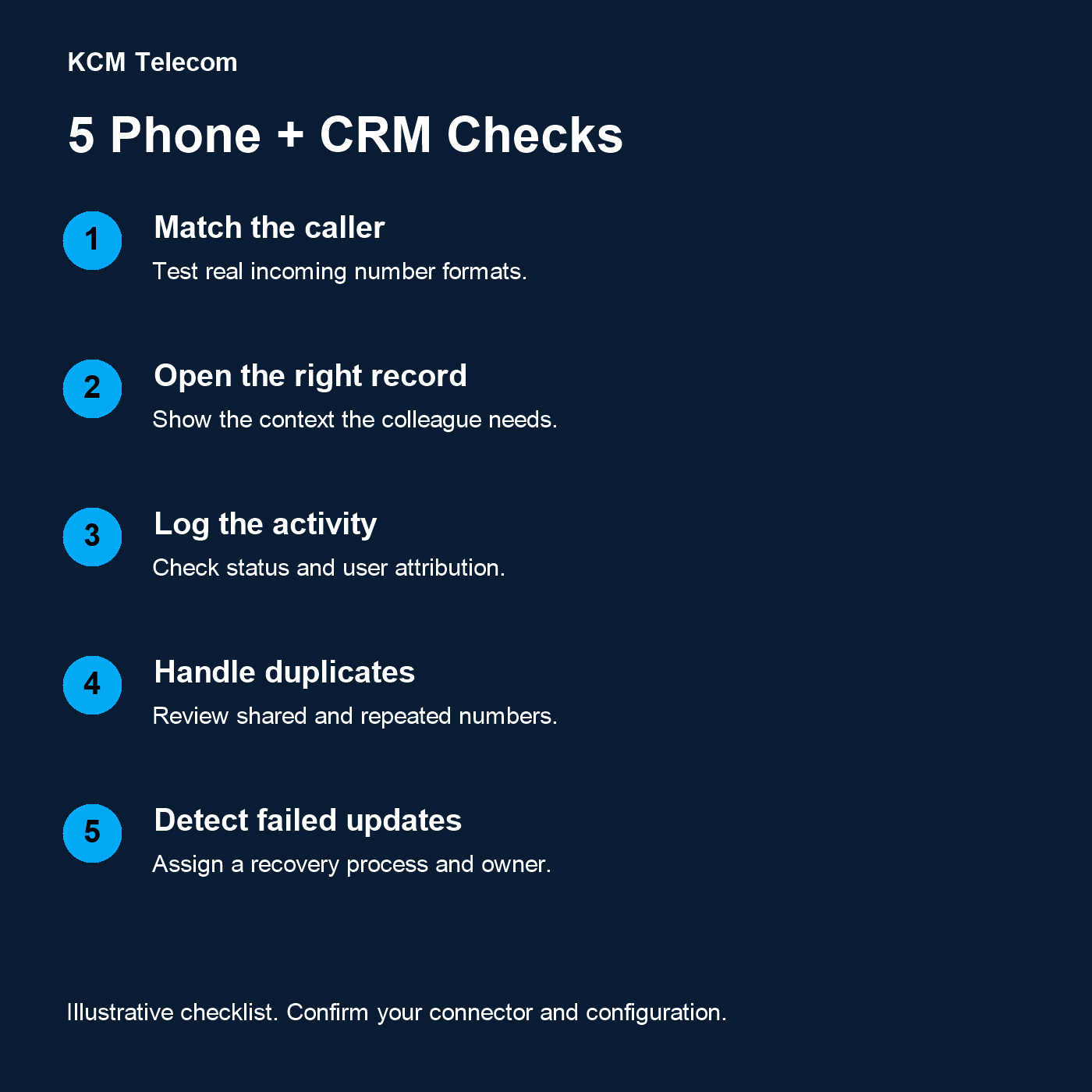
| Test | What to check |
|---|---|
| Known caller | The intended contact opens with the information the colleague needs. |
| Unknown caller | The colleague can follow an agreed process without creating unnecessary records. |
| Shared or duplicate number | The team can resolve an ambiguous match rather than assuming the first result is correct. |
| Call activity | The record shows the expected status and is attributed to the correct user. |
| Failed update | A responsible person can identify missing entries and follow the recovery process. |
Use a small test group and agreed sample records. Include an answered call, an unanswered call, an outbound call and a transferred call. Check the final CRM entries as well as what appears on the phone screen.
Add AI where the workflow benefits
AI summaries or voice agents may support a wider design, but their ability to read or update your CRM must be confirmed separately. Specify which fields may change, what requires human review and what happens when an update fails.
AI Agent prices are on request, depending on complexity. Setup and usage charges are specified in your individual proposal.
Plan a focused KCM Telecom trial
Ask KCM to review your CRM edition, user permissions, calling workflow and integration requirements. Request a proposal that distinguishes the PBX package, CRM licensing, configuration, custom development, usage and applicable VAT.
Use the KCM Telecom trial to agree and test the available workflow before a wider rollout. Confirm your trial’s integration scope in advance.
Sources and further reading
- KCM Telecom PBX feature comparison
- KCM Telecom application integration information
- 3CX Salesforce integration: matching and call journaling
Planning your next customer communications project? Contact KCM Telecom to discuss your requirements. You can test our Voice Agents by calling (+357) 25 056432 or test our services 30 days free of charge inclusive max. 100 EUR call credit!